Learning outcomes
-
Create a repository, record changes as commits and read the history
-
Explain the three local places a file can be in — working tree, staging area, local repository — and move a file between them
-
Write a commit message that is useful to somebody reading it in six months
-
Locate the remote repository in the picture and say which commands cross the network
-
Tell a centralized from a distributed version control system and name what the distributed one makes possible
-
Explain what a commit stores, and why that makes returning to an earlier state possible
Centralized or distributed
Version control did not start distributed. In a centralized system there is one repository, on one server, and every developer has nothing but a working copy of it. Subversion and Microsoft Team Foundation Server work this way.
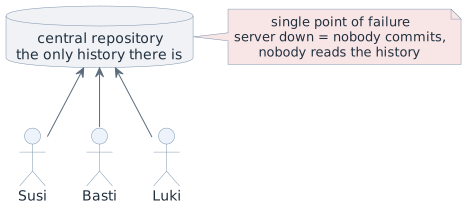
Every operation that has anything to do with history — commit, log, diff, revert — goes through that one machine. It is a single point of failure, and not only in the dramatic sense of a burnt server: a slow network is enough to make committing something you postpone.
Git is distributed. Cloning does not fetch a working copy, it fetches the whole repository. Every participant holds a complete history.
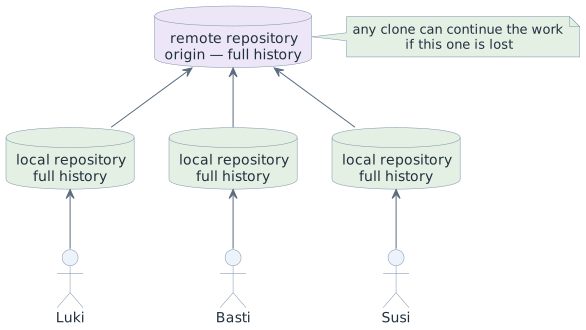
origin on the server is therefore a repository, not a headquarters. It holds
the same kind of history as the .git directory on your machine — a full copy,
not a master version of which yours is a fragment. It is the agreed meeting
point, and that is a convention, not a technical rank.
Two consequences you feel on the first day:
-
git add,git commit,git logandgit diffnever touch the network. Committing offline works — on a plane, in a cellar, with the wifi switched off. Onlygit push,git fetch,git pullandgit clonecross the line. -
A commit that exists only in your local repository exists for nobody else. "It is committed" and "the others have it" are two different statements — the second one needs a push.
How the two sides are kept in step — remote-tracking branches, conflicts,
rejected pushes — is the subject of git-conflicts-remotes. Here it is enough
to see where the line runs.
|
Four places, not one
Most confusion with git comes from believing a file is simply "saved or not". A change passes through four places, and every git command you will type moves it between two of them.

The same four places as a drawing. The working copy is the working tree. Each
commit adds a version (v1, v2, …) to the local repository, and git push
copies those versions to the remote repository.
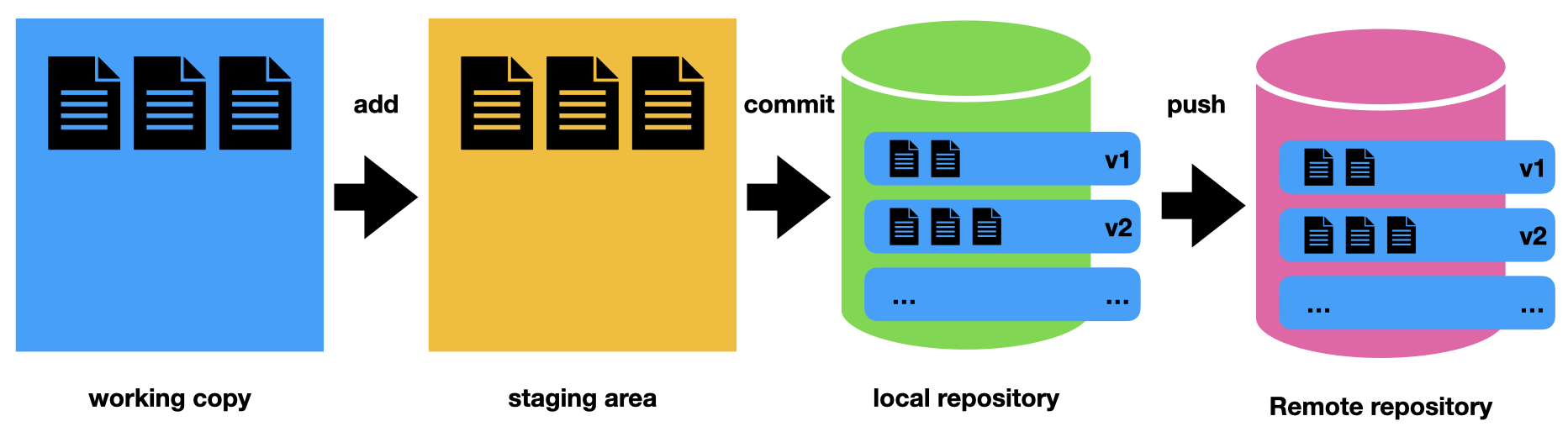
The middle place is the one without an equivalent in other tools. The staging area lets you choose which of your current changes make up the next commit. You edited three files and only two belong to the bug you are fixing: you stage those two and commit them, and the third stays in the working tree for the next commit.
git status answers the only question that matters while you work: what is in
which state right now. Run it more often than you think you need to.
Starting a repository
mkdir my-first-repo
cd my-first-repo
git init                # creates .git — this directory is now a repository
ls -a                   # .git is there, and it is the whole repository
git status              # "No commits yet", and nothing tracked
Everything git knows about the project sits inside .git. Delete that directory
and you have an ordinary folder again, with your files intact and the history
gone. Try it once, deliberately, so that the relationship is clear:
rm -rf .git             # history gone, working tree untouched
git status              # "not a git repository"
git init                # start over
This is the only place in this course where deleting .git is a good
idea. It is not recoverable — there is no second copy of a repository that was
never pushed.
|
git init does not create a commit. A fresh repository has a history of length
zero, and the first git commit is what starts it.
What a commit is
A commit records the complete state of the tracked files, plus who made it, when, a message, and which commit came before it. It is not a diff — the diff is computed between two commits when you ask for it.
That sentence is the centre of git, and it is worth watching it happen. Two files, nothing committed yet:
touch file1 file2
git status              # both untracked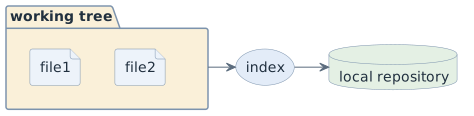
git add file1 file2
git status              # both staged, ready to be committed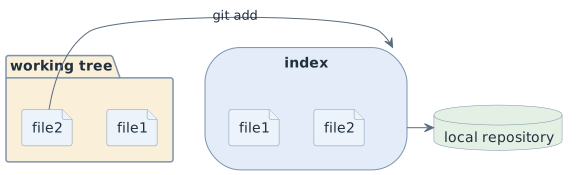
git commit -m "feat: add the first two files"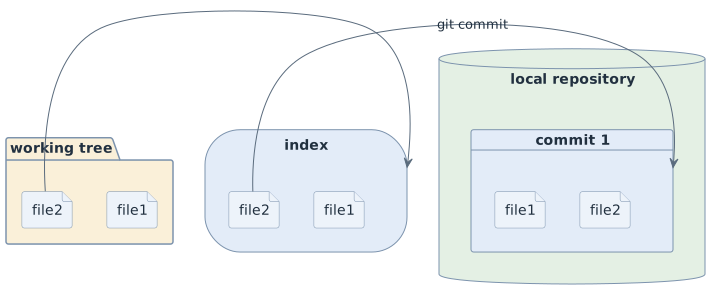
Change one file and commit again. The second commit does not store "one line added to file1" — it stores file1 and file2 in their current state:
echo "one more line" >> file1
git add file1
git commit -m "docs: extend file1"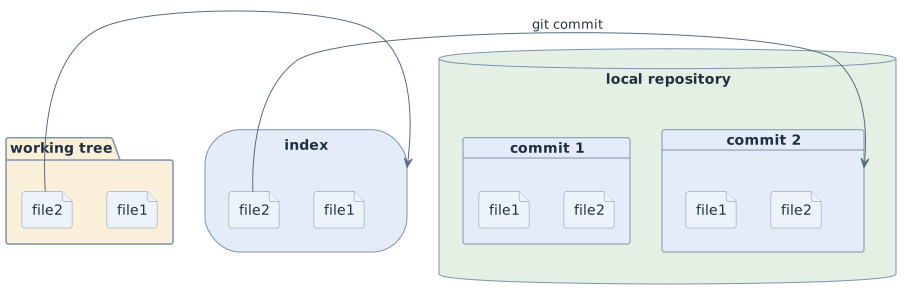
Deleting is the case that makes it unmistakable. A deletion has to be staged like any other change, and the resulting snapshot simply contains one file less:
rm file2
git add file2           # yes — the deletion is a change and has to be staged
git commit -m "chore: remove the unused file2"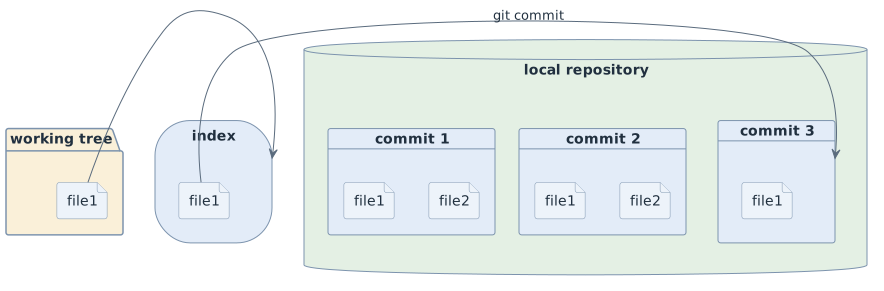
Three statements follow from those pictures, and they are the ones to remember:
-
A commit stores all tracked files, not the difference to the commit before.
-
The content is compressed, and identical content is stored once. Three snapshots of an unchanged
file2do not cost three times the space — which is why storing whole states is affordable at all. -
The staging area is not emptied by a commit. It holds the state that was committed, which is the same thing as "what the next commit would contain if you changed nothing".
The history is a chain, and two names point into it
Each commit names its predecessor, so the commits form a chain. Two names point
into that chain: the branch — main in this course — and HEAD, which means
"where you are right now". After an ordinary commit both point at the same
place, the newest one.
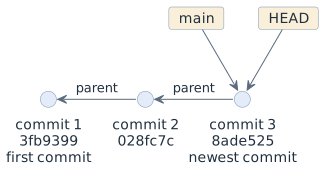
The arrows between commits point backwards, to the parent. A commit knows where it came from and cannot know what comes after it — which is precisely why a commit, once written, never changes.
git log --oneline8ade525 (HEAD -> main) chore: remove the unused file2
028fc7c docs: extend file1
3fb9399 feat: add the first two filesHEAD → main in the first line is the picture above, in text form. Both names
are at 8ade525.
git show 8ade525           # what this commit changed, computed on request
git diff                   # working tree vs staging area
git diff --staged          # staging area vs last commit
git log --oneline --graph  # the chain, drawn
Because a commit is a state and not a step, you can always go back to one. That is the actual promise of version control: you can experiment because you can return.
git restore file1                          # throw away the edits, back to the staging area
git restore --source=HEAD~1 file1          # take file1 as it was one commit ago
HEAD~1 means "one commit before HEAD". Moving HEAD itself to an older commit
is possible too, and has a name and a trap — both are in git-branching.
Commit messages follow Conventional Commits
The message is written for a person reading the history later — usually you, and usually while looking for the moment something broke. The school project guidelines prescribe the Conventional Commits format, so we use it from the first commit rather than switching later.
<type>(<scope>): <subject>          # scope is optional

<body: why, not what — optional>

<footer: task id, BREAKING CHANGE — optional>
| Type | Used for |
|---|---|
|
a new feature |
|
a bug fix |
|
documentation only |
|
restructuring without changed behaviour |
|
tests added or corrected |
|
formatting only, no meaning changed |
|
performance |
|
everything outside source and tests, dependency and version bumps |
|
pipeline and build system |
|
takes an earlier commit back |
| Useless | Useful |
|---|---|
|
|
|
|
|
|
|
|
The subject says what changes for the reader, in the imperative, under about
fifty characters, and it does not end with a full stop. The type is the part
that makes the history machine-readable: git log --oneline | grep '^……. feat'
answers "what did we build in this sprint" without anyone writing a report.
Two rules come from the project guidelines rather than from the specification itself:
-
Every commit carries the id of its task in the message, so a line of history and a board entry can be traced to each other.
-
A breaking change is marked — either as
feat!:or with aBREAKING CHANGE:line in the footer.
The why belongs in the body, one blank line under the subject — not in the code as a comment nobody updates.
feat(export): write attendance to CSV

The class teachers need the list in the school administration system, which
imports CSV and nothing else. XLSX was rejected because it drags in a library
for one feature.

Task: SYP-42
Later in the year the agent writes these messages for you. It follows the
convention reliably; what it cannot know is the task id and whether the change
is really a feat or in truth a fix. Both stay your check before the commit.
|
What does not belong in a repository
build/
target/
node_modules/
.venv/
.env            # secrets
*.class
.DS_Store
Two categories: things you can regenerate, and things that must not be public. A secret committed once stays in the history even after you delete the file — removing it means rewriting history, which is a bad afternoon. Check before you commit.
Git clients
Git itself is the command-line program. Everything else — the IDE, a desktop application, a web page — is a client that runs those same commands for you and shows the result.
| Client | Good at | Weak at |
|---|---|---|
command line ( |
saying exactly what happens; identical on every machine; the only form that works over SSH and in a pipeline |
nothing is discoverable — you have to know the command exists |
IntelliJ IDEA |
the log with its graph, staging single lines of a file, resolving conflicts side by side, all without leaving the editor |
hides which command ran, so a broken state is hard to describe |
GitKraken |
drawing the commit graph of a confusing history |
another tool to install; free for non-commercial use only |
GitHub in the browser |
pull requests, review, comparing branches, the history of one file |
no working tree, no staging area — everything local is invisible there |
In this course the command line comes first and the IDE second. The reason is not
nostalgia: in the oral examination, and when asking anyone for help, you have to
name what you did. "I clicked the arrow" is not an answer; git pull --rebase
is.
Two small comforts worth setting up on the first day. On macOS, zsh with
its git plugin shows the branch and whether the working tree is dirty directly in
the prompt; on Windows, posh-git does the same in PowerShell. The prompt then
answers "where am I" without a command.
|
The same history in IntelliJ
The IDE shows nothing the commands do not — it shows it faster. In IntelliJ the Git tool window (Alt+9) has a Log tab with the graph, the branches of the local repository and those of the remote, and the changed files of the selected commit.
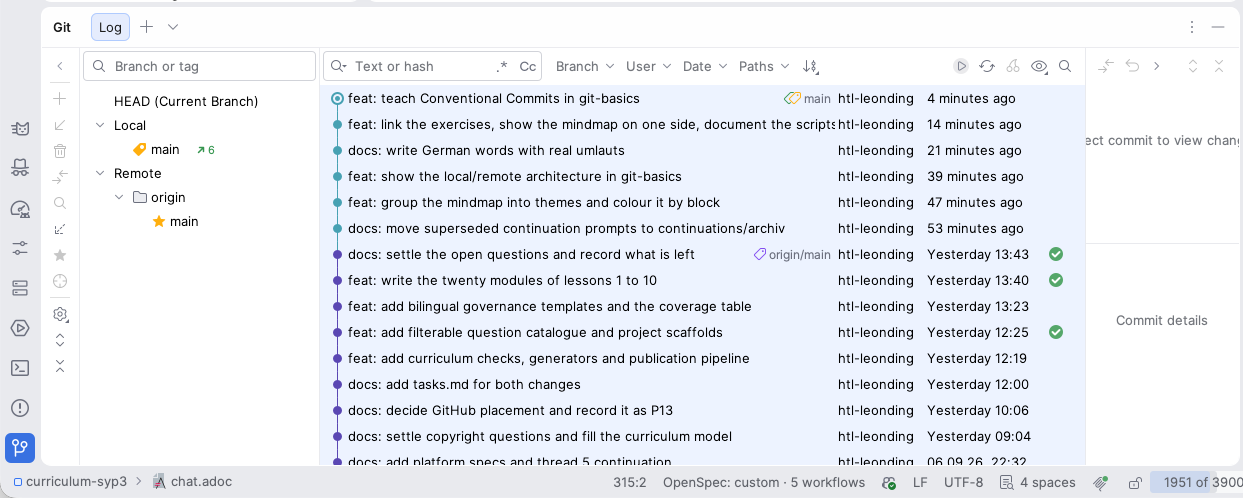
Three things are worth reading off this window from the first lesson:
-
Under Local stands
main, under Remote standsorigin/main. Both labels appear in the picture of the four places — the tool window is that picture, filled with your project. -
↗ 6next tomainmeans six commits are committed but not pushed. That is the difference between "it is committed" and "the others have it", made visible. -
The subjects read
feat: …,docs: …. A history in Conventional Commits form can be scanned in the IDE exactly as it can withgit log --oneline.
Decisions
-
Every project in this course lives in a git repository from the first day, not from the first milestone.
-
The default branch is called
main. Older material and other courses may saymaster; it is the same thing under an earlier name. -
The command line is the reference, the IDE is the everyday tool. Every command in this module is shown as a command first — what you click afterwards is your choice.
-
Documentation is committed together with the code it describes. Same repository, same history.
-
Generated output is never committed. If it can be rebuilt, it is not a source.
-
Commit messages are in English, imperative mood, subject under fifty characters, and follow Conventional Commits —
type(scope): subject— as required by the school project guidelines. -
Every commit message carries the id of the task it belongs to.
Pitfalls
-
One giant commit at the end of the evening. The history then says nothing, and bisecting a bug is impossible. It is also the commit whose type you cannot name — a change that is
featandfixandchoreat once is too large. -
choreas a catch-all. If the type is hard to choose, the reason is usually the change, not the list of types. -
git add .without looking. That is hownode_modulesand.envget in. -
Committing generated HTML next to the AsciiDoc source. Two truths, and the diff becomes unreadable.
-
Believing a file is "in git" because you saved it. Saving writes the working tree; only
git commitrecords it. -
Believing a commit is safe because it is committed. It lives on one disk until it is pushed — the machine in room 3 is not a backup of itself.
-
Believing a commit stores the changed files only. It stores the whole state; the diff you see in
git showis calculated when you ask for it. -
Forgetting that a deletion is a change.
rm filealone leaves the file in the next snapshot’s parent and shows up as unstaged — the deletion has to be added like anything else. -
Describing a problem by the buttons you pressed. Nobody can help with "I clicked sync"; everybody can help with the command and its output.
Terminology
| Deutsch | English |
|---|---|
Arbeitsverzeichnis |
working tree |
Bereitstellungsbereich |
staging area (git’s own documentation calls it the index) |
Versionsstand, Einspielung |
commit |
Schnappschuss, Zustand |
snapshot, state |
Verlauf, Historie |
history |
Repository, Ablage |
repository |
zentral / verteilt |
centralized / distributed |
Einzelner Ausfallpunkt |
single point of failure |
Zeiger |
pointer |
Art der Änderung |
commit type |
Aufgabenkennung |
task id |
entferntes Repository, Gegenstelle |
remote repository |
klonen |
clone |
hochladen / holen |
push / fetch |
Kommandozeile |
command line |
Further reading
-
Pro Git, chapters 1–2, https://git-scm.com/book
-
Conventional Commits 1.0.0, https://www.conventionalcommits.org
-
Projektrichtlinien HTL Leonding — Commit Messages, https://htl-leo-projekte.github.io/project-checklist/#_commit_messages
-
GitKraken, https://www.gitkraken.com — free for non-commercial use
-
Module
git-branching— the next step, once one line of history is not enough